Watching live TV and movies on your Firestick has never been easier. In this complete guide, we’ll show you how to install IPTV on Firestick step-by-step using Krooz IPTV, one of the most reliable and high-quality IPTV services available today.
Whether you’re a beginner or a tech-savvy user, this tutorial will help you install, configure, and enjoy thousands of live channels, movies, and shows from around the world.
What You Need Before Installing IPTV on Firestick
Before we start, make sure you have the following:
- An active Krooz IPTV subscription (Get one here)
- A Fire TV Stick properly set up and connected to your TV
- A stable internet connection (minimum 15 Mbps recommended)
- The Downloader app, which we’ll use to install the IPTV player
Step 1: Enable Apps from Unknown Sources
By default, Firestick only allows apps from the Amazon Store. To install third-party IPTV players, you must enable apps from unknown sources.
- On your Firestick Home Screen, go to Settings.
- Select My Fire TV → Developer Options.
- Turn ON Apps from Unknown Sources.
- Confirm the pop-up message.
This step ensures you can safely install the IPTV app without restrictions.
Step 2: Install the Downloader App
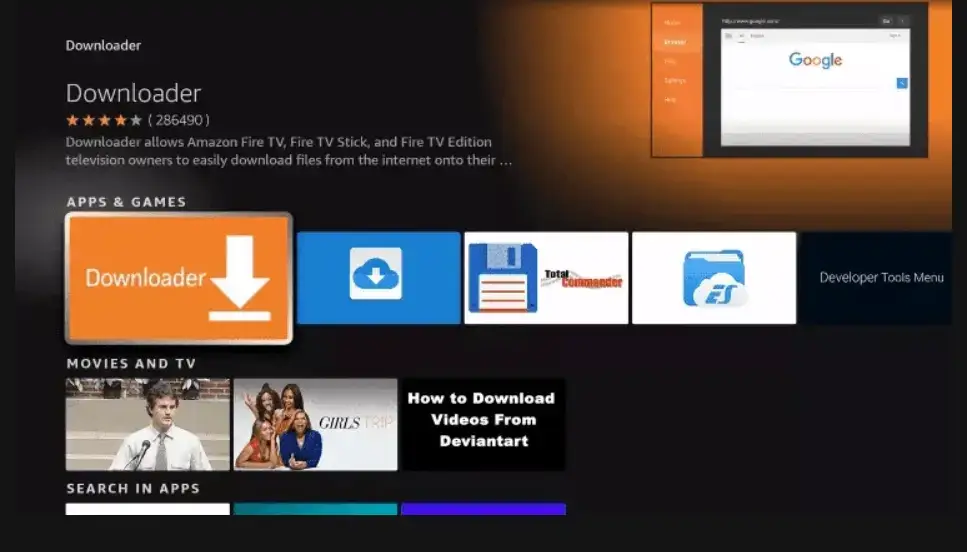
The Downloader app helps you download APK files directly on your Firestick.
- Go to Find → Search on your Firestick.
- Type Downloader and choose it from the results.
- Click Download or Get.
- Once installed, open Downloader and allow storage permissions.
Step 3: Download and Install IPTV Player
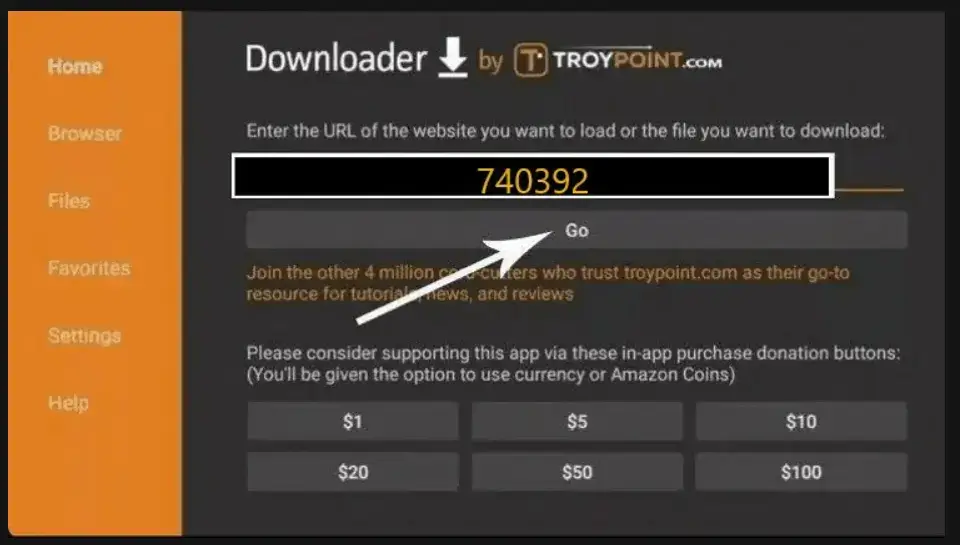
- In Downloader, enter the following CODE: 740392 or IPTV smarters
- Click Go to begin downloading the app.
- Once the file finishes downloading, click Install.
- After installation, click Open to launch the app.
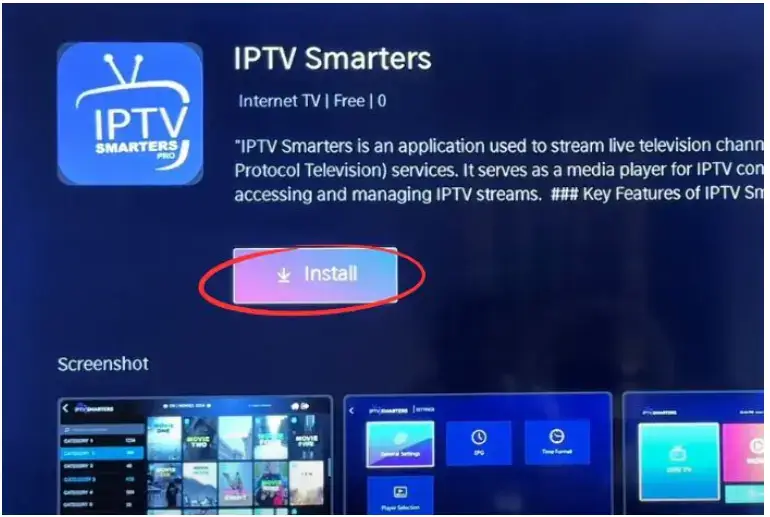
Step 4: Log In to IPTV smarters pro
Once the app opens, log in with your account details:
- Enter your Username, Password, and Portal URL (sent to you after purchase).
- Click Login.
- Wait a few seconds for the channels and categories to load.
Now you’re ready to stream high-quality live channels, movies, and on-demand content with Krooz IPTV.
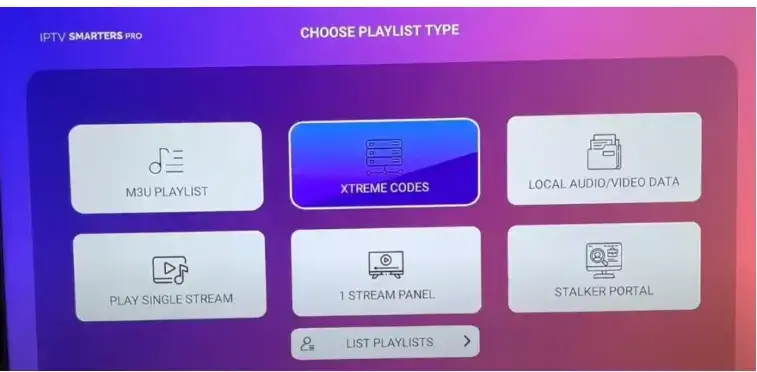
Step 5: Enjoy Your IPTV Channels on Firestick
Congratulations! You’ve successfully learned how to install IPTV on Firestick.
You can now explore your channel list, VODs, and favorite shows with an easy-to-use interface.
Pro Tips for Best Performance:
- Use a wired Ethernet adapter for stable streaming.
- Close unused apps to free up memory.
- Use a VPN for better privacy and to access geo-restricted content.
Troubleshooting Tips
If you experience buffering or loading issues, try the following:
- Restart your Firestick.
- Clear cache: Settings → Applications → Manage Installed Apps → Krooz IPTV → Clear Cache.
- Make sure your Wi-Fi signal is strong.
- Update the app if prompted.
- Contact Krooz IPTV Support for assistance.
Why Choose Krooz IPTV?
Krooz IPTV is one of the most stable and high-performing IPTV providers in 2025. Here’s why users love it:
- 21,000+ HD and FHD live channels
- Thousands of on-demand movies and TV shows
- Works on all devices: Firestick, Smart TV, Android, iPhone, MAG, and more
- Easy setup and instant activation
- 24/7 technical support
- Affordable subscription plans
👉 Start watching today at Krooz IPTV
Frequently Asked Questions (FAQ)
1. Is it safe to install IPTV on Firestick?
Yes, installing IPTV on Firestick is completely safe if you use trusted providers like Krooz IPTV. Avoid downloading apps from unknown sources.
2. Do I need a VPN to use IPTV?
While not required, a VPN is recommended to protect your privacy and improve streaming stability.
3. Can I install Krooz IPTV on multiple devices?
Yes, your subscription can be used on several devices, including Firestick, Smart TVs, and mobile phones (depending on your plan).
4. What’s the best IPTV player for Firestick?
Krooz IPTV includes its own optimized player, so no external app is required.
For more information about Firestick, visit Wikipedia Fire TV stick’s page
Final Thoughts
Learning how to install IPTV on Firestick is simple, and once done, you’ll have access to thousands of live TV channels and VODs. Krooz IPTV makes the process smooth, fast, and secure — perfect for entertainment lovers in 2025.